Contrast Insightsダッシュボード
通常、Contrastにログインすると、Contrast Insightsダッシュボードが表示されます。また、左側のナビゲーションでInsightsを選択してダッシュボードを表示することもできます。
このダッシュボードは、セキュリティ対策の適用範囲、コンプライアンスの状況、脅威へのリスクレベルを反映し、システム全体のセキュリティ状況を評価するのに役立ちます。
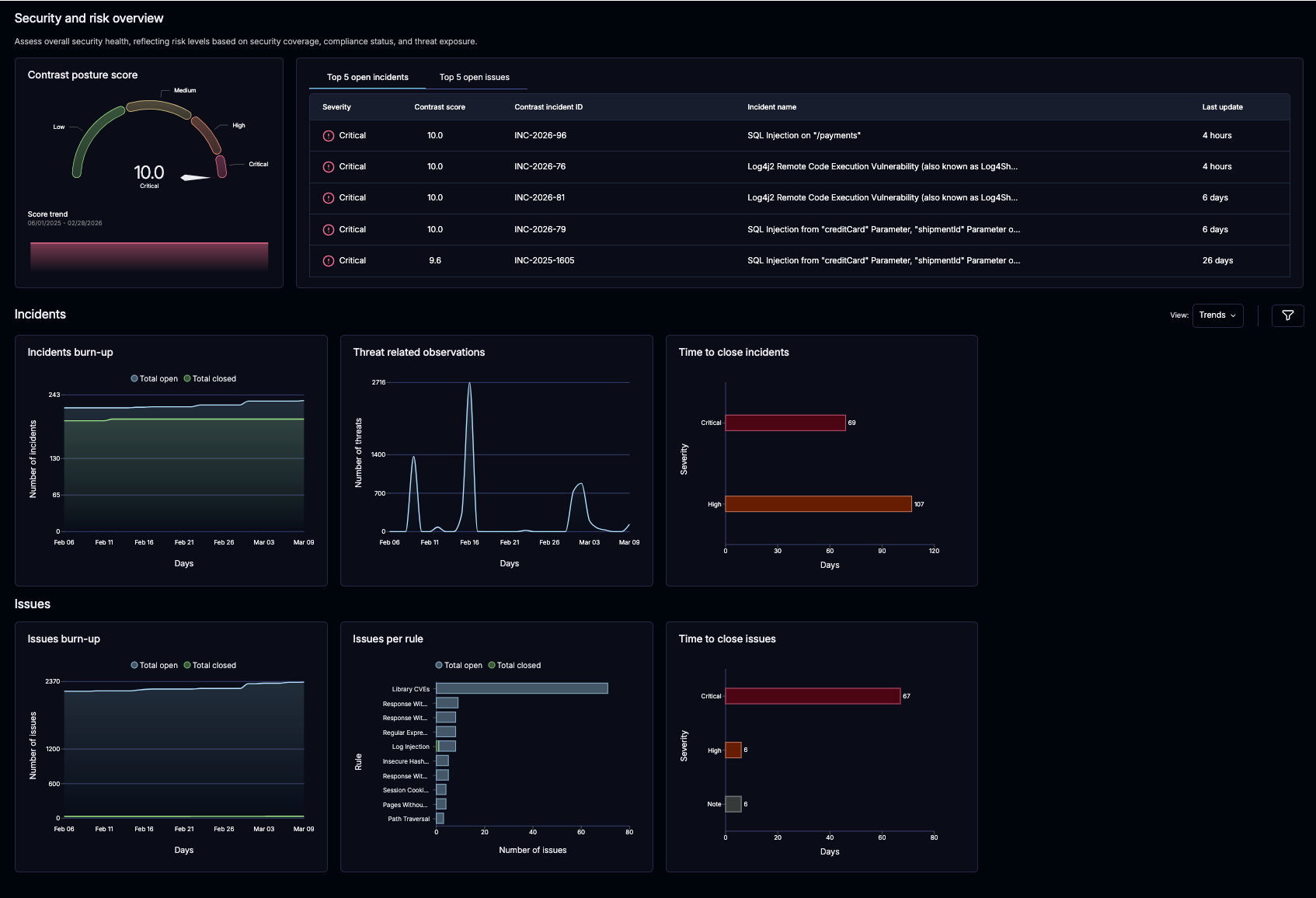
ダッシュボードの詳細
Contrast posture score: This score is an exponential aggregation of the Contrast score for all applications. See Contrast Score for more information.
You also get two default views: a fixed Trends view and a My Insights view that you can customize.
Trends view:
インシデントと問題のリスト: これらのリストには、深刻度に基づいた上位5つの問題またはインシデントが表示されます。適切なタブを選択して表示してください。
個々の課題またはインシデントを選択すると、詳細が表示されます。
問題のチャート:
Incidents burn-up:このグラフは、指定された期間内にContrastで報告されたインシデントのクローズ状況を示します。
問題のクローズまでの時間: このチャートは、組織が問題の深刻度に応じて問題をクローズするのにかかった時間を示します。
インシデントのクローズまでの時間: このチャートは、組織が深刻度に応じて問題をクローズするのにかかった平均時間(分、時間、または日数)を示します。
表示されるインシデントは、選択した期間内にクローズされたかどうかに基づいています。
問題のチャート:
Issues burn-up:このグラフは、指定された期間内にContrastで報告された課題のクローズ状況を示します。
ルール別の問題: このチャートは、Contrastが作成した未解決の問題のハイレベルな概要を示します。この情報は、組織に対するリスクをより深く理解するのに役立ちます。
問題のクローズまでの時間: このチャートは、組織が問題の深刻度に応じて問題をクローズするのにかかった時間を示します。
表示される問題は、選択した期間内にクローズされたかどうかに基づいています。
My insights view:
If you have application access, you can create and edit your own personal views with no special editor permission needed. Feel free to add as many new charts as you want to your personal view.
To create a My insights chart:
Select the Add new view option under the View dropdown.
Name the new view.
Select Add view.
Select the Add widget option.
Select the Preview option.
Select Apply to add the view.
Edit the name or size of the chart by selecting the More option in the upper-right of the widget.
Customize trend widgets with filters
To help you focus on the most relevant security data, Insights allows you to apply filters directly to your trend widgets, including those created in My insights. By customizing your view, you can gain more granular insights into vulnerabilities and findings across your applications. When a new filter supported on the issue, incident, or observation data is added, it will be available here too.
Select Edit in the More option in the upper-right of the widget and apply filters as needed.
Global filters: Filter options like Time, Severities, and Deployment Tiers can be used for all widgets.
Incident filters: Filter options like Time, Severities, Deployment Tiers, Applications, Data types, Targets, Sensors, and Techniques can be used for incident-based widgets.
Issue filters: Filter options like Time, Severities, Deployment Tiers, Applications, Data types, Targets, Sensors, Techniques, and Has Incident can be used for issue-based widgets.
Observations filters: Filter options like Time, Applications, and Results can be used for threat-related observation-based widgets.