View agent health
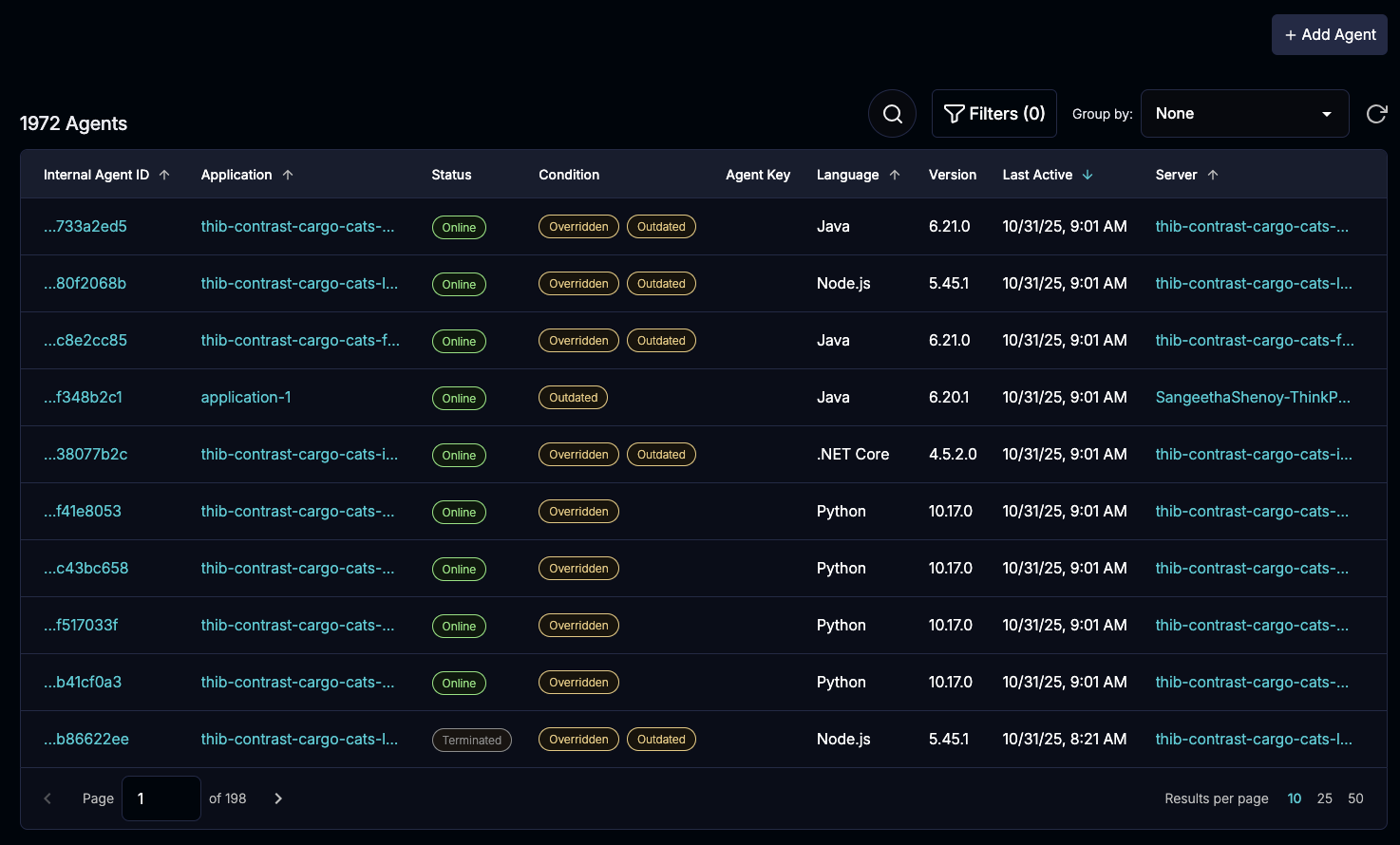
Use the agent dashboard to view the health and configuration states for all agents.
Before you begin
ロールベースのアクセス制御を使用している場合、組織管理アクションを持つロールが必要です。
組織のユーザとグループを使用している場合は、組織の管理者ロール(Administrator)が必要です。
Supported agent versions: The agent dashboard shows data for these agent versions and later:
Java 6.6.0
.NET Framework 51.0.37
.NET Core 4.2.19
Node.js 5.11.0
PHP 1.34.0
Python 8.5.0
Go 6.9.0
Steps
エージェントダッシュボードを開く:
左側のナビゲーションの「管理」で、「エージェント管理」を選択します。Northstar
Contrast: ヘッダーから「管理」を選択し、まだ選択されていない場合は「エージェント管理」を選択します。
View these details:
Internal agent ID: An identification value that Contrast assigns to the deployed agent.
To copy the full ID to your clipboard, select it.
Every time an agent starts, it generates a new instance ID and combines it with the application ID to create the Internal Agent ID. For Java and .NET agents with more than one application instrumented by the same agent, you see an ID for each application instance combination.
If you are using the Flex Agentフレックスエージェント to manage your agents, the Flex icon is displayed.
Application: The name of the application where the Contrast agent is instrumented.
To view details about an application, select the application name.
NorthstarNorthstar: This action opens the Explorerエクスプローラー.
Contrast: This action opens the Applications list.
Status: The current status of the Contrast agent.
The statuses are Live and Expired.
An agent with a status of Expired is no longer active and requires a restart. This status indicates that the agent has failed to send a heartbeat signal to Contrast for more than five minutes.
Condition: The state of the agent.
Overridden: Different values for a configuration setting exist and one value is taking precedence over the others. For example, the same setting could be configured in an environment variable and in the agent's configuration file.
A best practice is to remove the extra values.
Outdated: A later version of the agent exists.
Consider upgrading the agent to a later version.
Agent key: A value that authenticate the agents.
To view details about the agent key, select an agent key name.
Language: The language that the agent is using.
Version: The version of the agent.
Last active: The last time the agent sent data to Contrast.
Host: The hostname of the server associated with an application
By default, the server name and the hostname are the same. However, you can change the server name; you cannot change the hostname.
Server: The name of the server associated with an application.
To view details about a server, select the server link.
In some cases, a one-to-one relationship between servers and applications is not applicable:
For ephemeral servers, only one server has a status of Live, however instances for expired servers are stored for 30 days.
If you overwrite the
server.nameoption in the agent configuration, you could have multiple live agents associated with a single server name.For Java and .NET applications, one server and agent ID could be associated with multiple applications.
Refine the agent dashboard view
To refine the Agent dashboard view, select Filters at the top of the list.
The Filter button shows the number of selected filters.

Select one or more filters and select Apply.
Status: Displays agents with the selected statuses.
Condition: Displays agents with the selected conditions.
Application: Displays agents associated with selected applications.
Enter a partial or full name in the Search box to find specific applications.
Language: Displays agents using the selected languages.
Environment: Displays agents running in the selected environments.
Host: Displays the hostname for selected servers.
Enter a partial or full hostname in the Search box to find specific servers.
Server: Displays agents associated with selected servers.
Enter a partial or full name in the Search box to find specific servers.
Managed by: Displays agents that you deployed with the Flex Agentフレックスエージェント or individually.
Group agent dashboard data
To display data based on the servers, server hostnames, or applications associated with one or more agents, select Group by at the top of the list.
Select either Application or Server
The Application group shows this data:
Application: The name of the application.
Agents: The number of agents associated with the application.
Status: The agent status.
Condition: The agent state.
Agent key: The name of the authentication key associated with the agent.
Language: The language that the agent is using.
Version: The versions of the agent in use.
Last active: The last time the agent sent data to Contrast.
Server: The number of servers associated with the application.
The Server group shows this data:
Server: The name of the server.
Application: The name of the application associated with the server.
Agents: The number of agents associated with the server.
Status: The agent status.
Condition: The agent state.
Agent key: The name of the authentication key associated with the agent.
Language: The language that the agent is using.
Version: The versions of the agent in use.
Last active: The last time the agent sent data to Contrast.
The Host group shows this data:
Internal agent ID: An identification value that Contrast assigns to the deployed agent.
To copy the full ID to your clipboard, select it.
Every time an agent starts, it generates a new instance ID and combines it with the application ID to create the Internal Agent ID. For Java and .NET agents with more than one application instrumented by the same agent, you see an ID for each application instance combination.
Application: The name of the application.
Host: The hostname for the server.
Status: The agent status.
Condition: The agent state.
Language: The language that the agent is using.
Version: The versions of the agent in use.
Last active: The last time the agent sent data to Contrast.
Server: The name of the server.
View agent, application, and server details::
To view agent details, select an internal agent ID.
The agent details panel shows this information:
Internal agent ID: An identification value that Contrast assigns to the deployed agent.
To copy the full ID to your clipboard, select it.
Every time an agent starts, it generates a new instance ID and combines it with the application ID to create the Internal Agent ID. For Java and .NET agents with more than one application instrumented by the same agent, you see an ID for each application instance combination.
Application: The name of the application.
Status: The agent status.
Condition: The agent state.
Agent key: The name of the authentication key associated with the agent.
Language: The language that the agent is using.
Version: The versions of the agent in use.
Last active: The last time the agent sent data to Contrast.
Host: The hostname for the server.
Server: The name of the server.
To view application details, select an application name.
NorthstarNorthstar: This action opens the Explorerエクスプローラー.
Contrast: This action opens the Applications view.
To view server details, select a server name.
The server details panel shows this information:
名前:サーバの名前。
最初の検出:サーバに関連付けられているアプリケーションのエージェントがContrastサーバにアクティビティを報告した最初の時間。
前回のオンライン:サーバに関連付けられているアプリケーションのエージェントがContrastサーバにアクティビティを報告した最後の時間。
環境:サーバがデプロイされている環境(開発、QA、本番)。
アプリケーション:サーバに関連付けられているアプリケーション。
Export data from the agent dashboard
You can export data from the agent dashboard based on the filters you use to refine the view:
If you don't select any filters, the default export contains data for live agents only.
If you select the Expired status filter, the export contains data for expired agents only.
Optional: Use filters to refine the view.
Select the Export (
 ) icon at the top right of the list.
Contrast displays a notification when the export is complete.